01
Enhance Blurry Portraits
Sharpen soft facial detail, hair, and clothing edges while keeping the person recognizable.
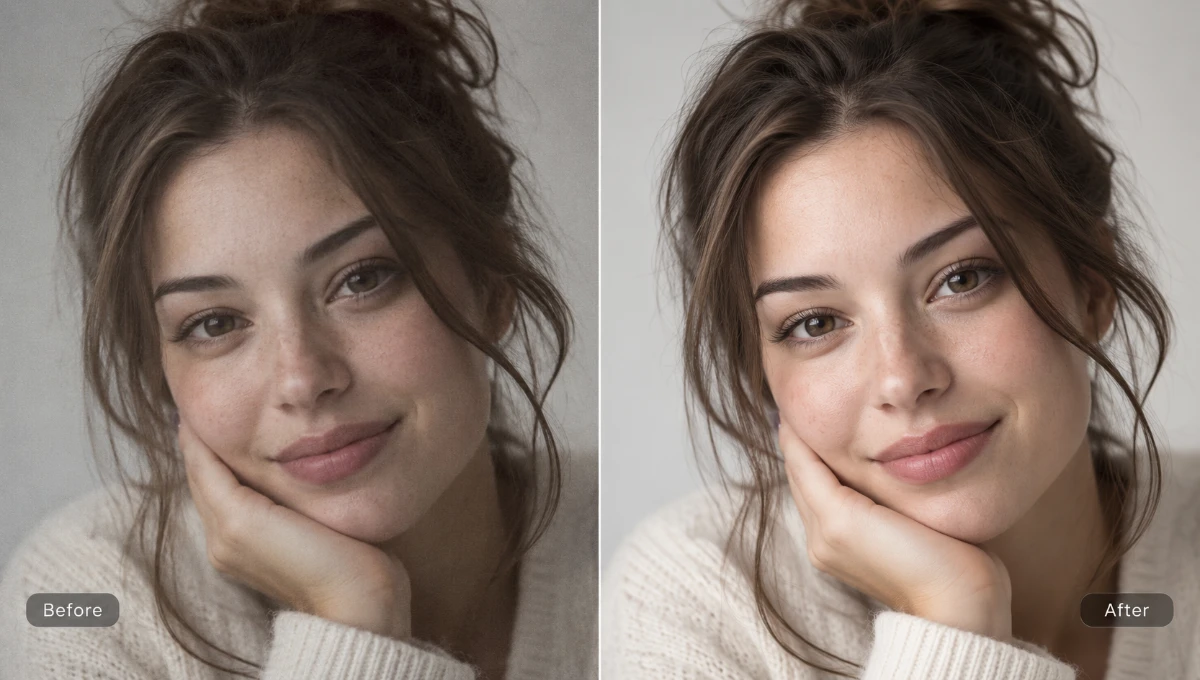 BeforeAfter
Enhance photo quality online with a free browser preview or Standard AI processing. Improve image quality, make blurry photos clearer, and compare the result before downloading.
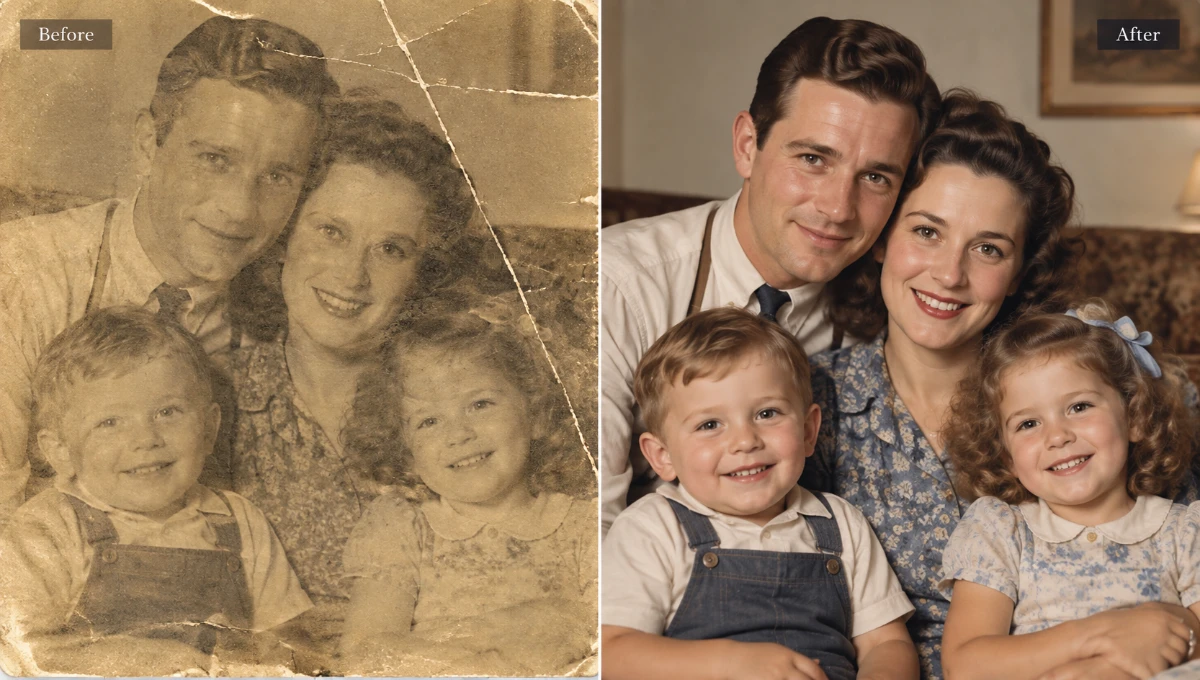
BeforeAfterCompare the same image before and after improvements to clarity, detail, lighting, texture, and overall balance.
01
Sharpen soft facial detail, hair, and clothing edges while keeping the person recognizable.
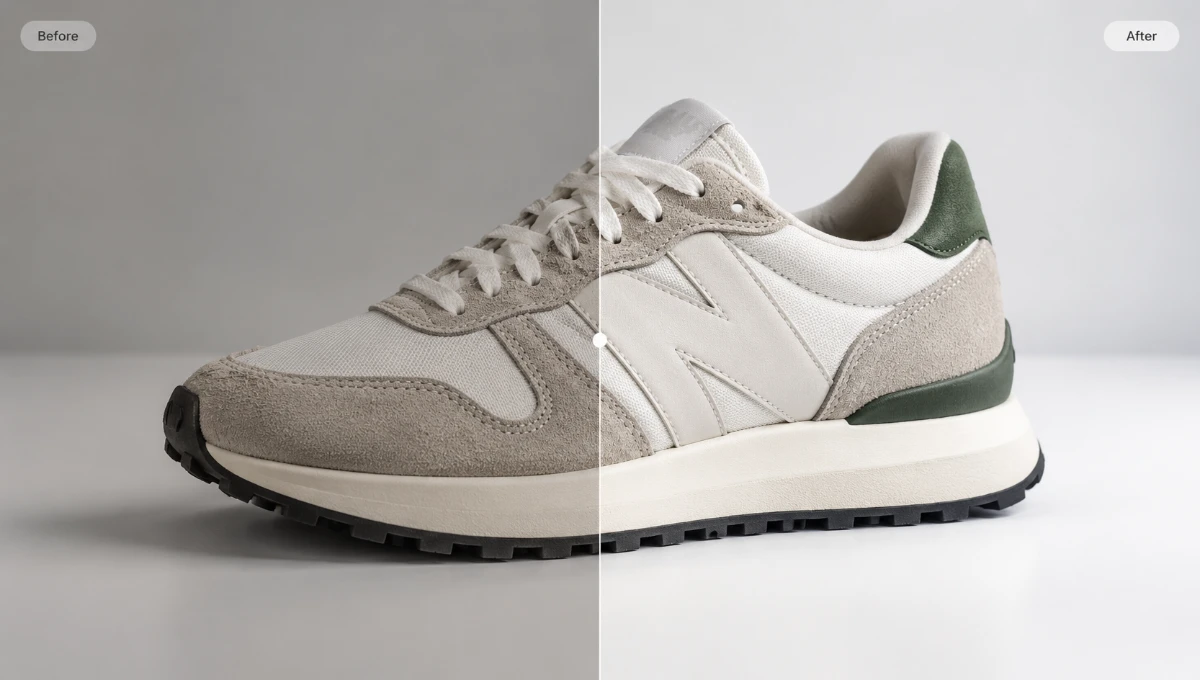
BeforeAfter02
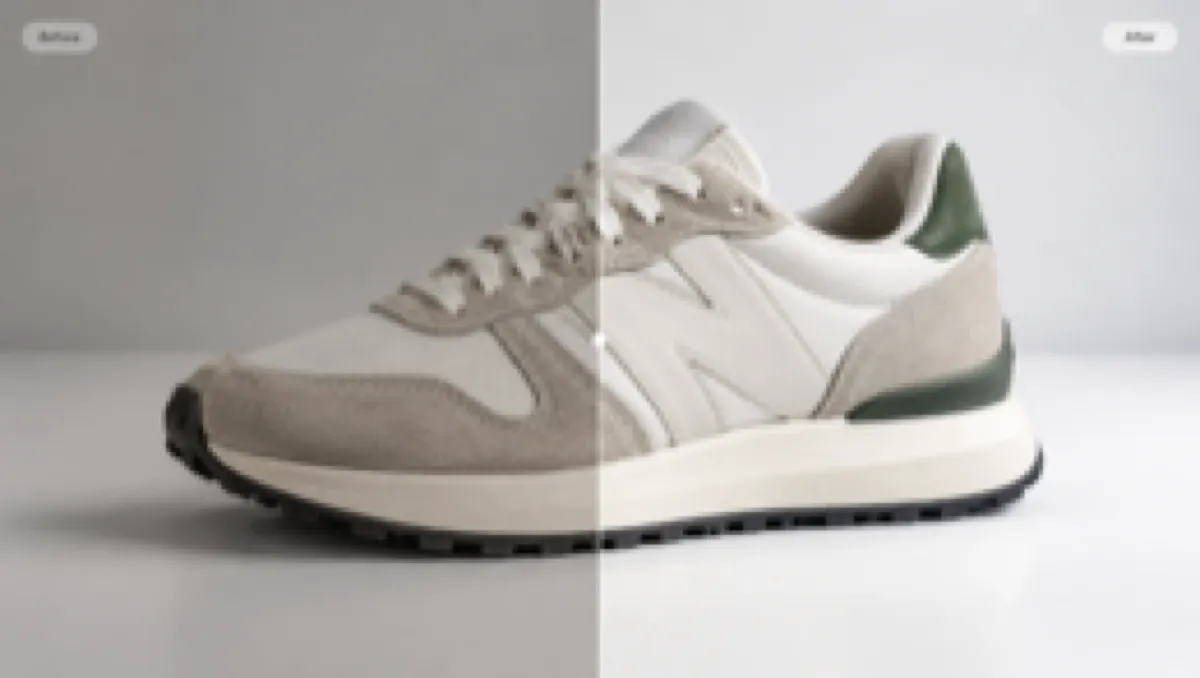
Make seams, labels, material texture, and product edges easier to inspect without changing the item itself.
 BeforeAfter
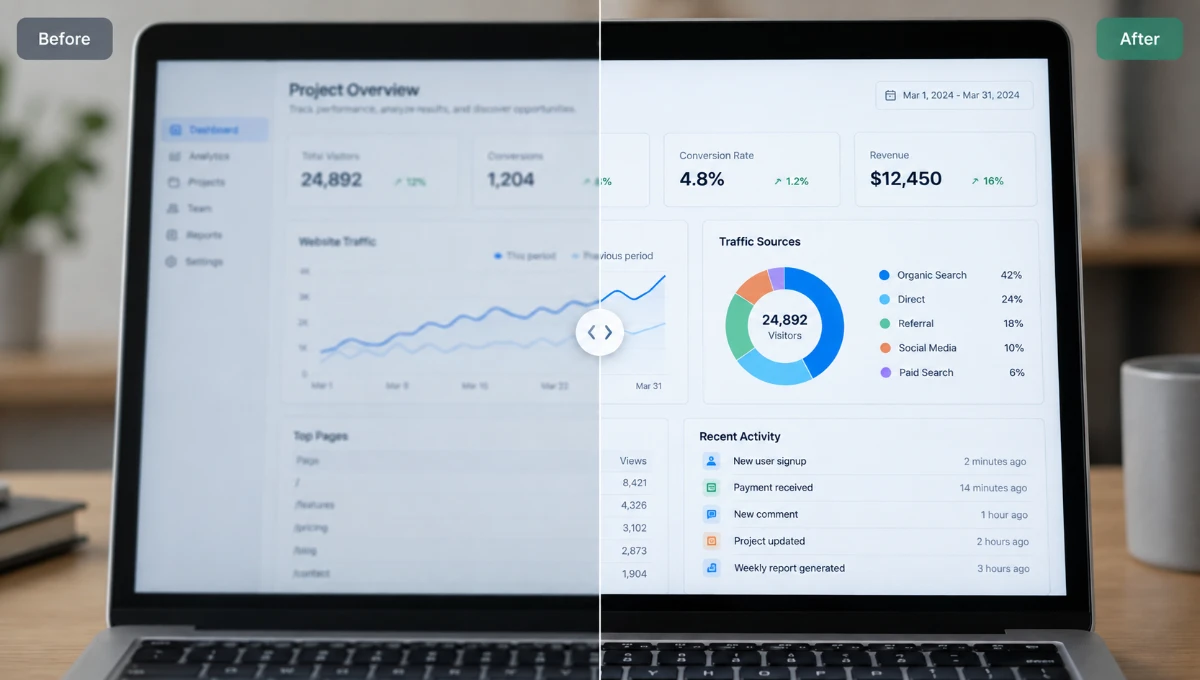
03
Increase edge contrast in menus, charts, and interface text without rewriting or correcting the words.
 BeforeAfter
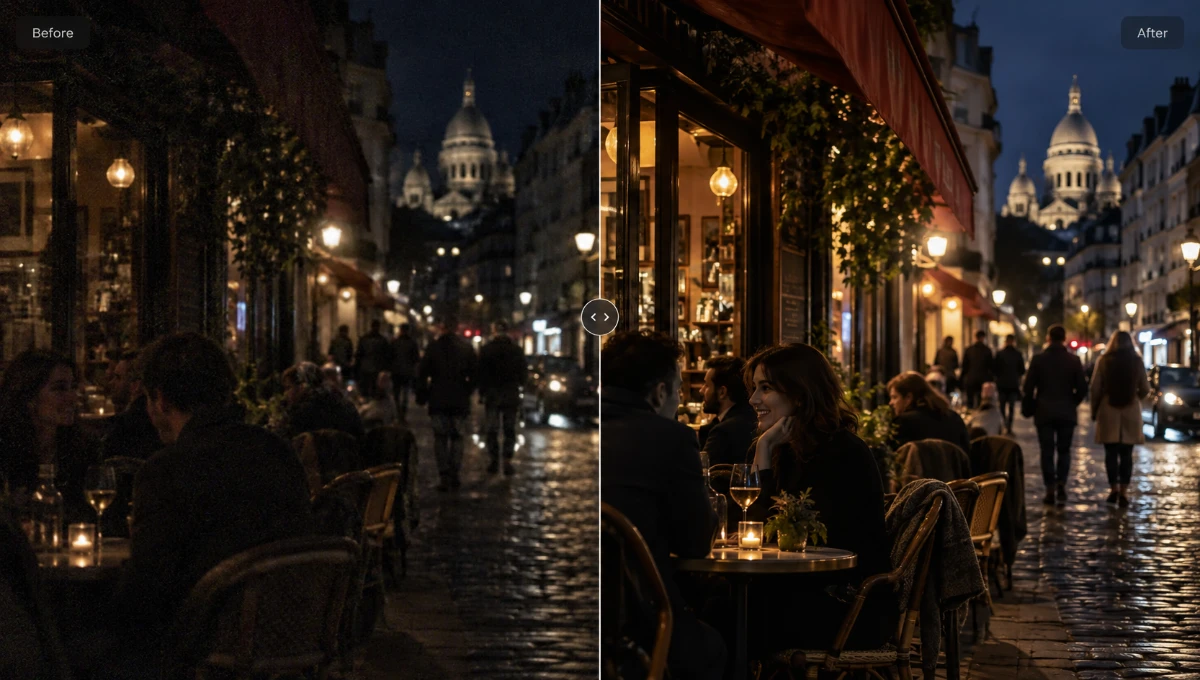
04
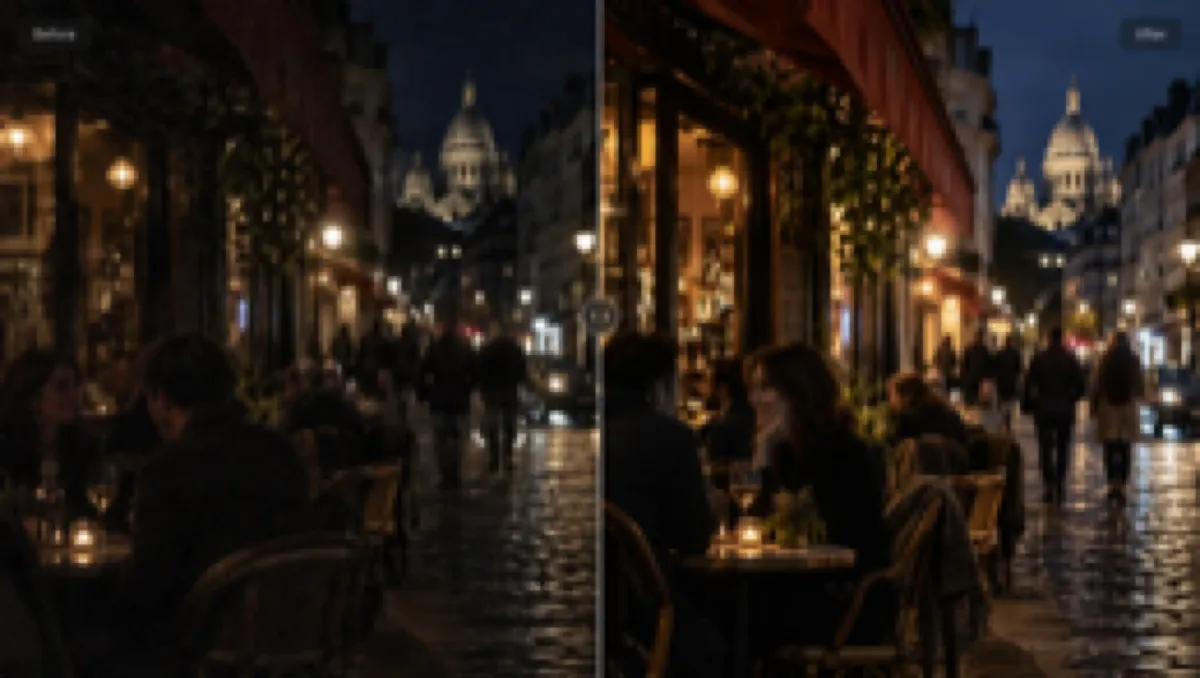
Lift useful shadow detail and soften harsh highlights while keeping the scene natural.
 BeforeAfter
05
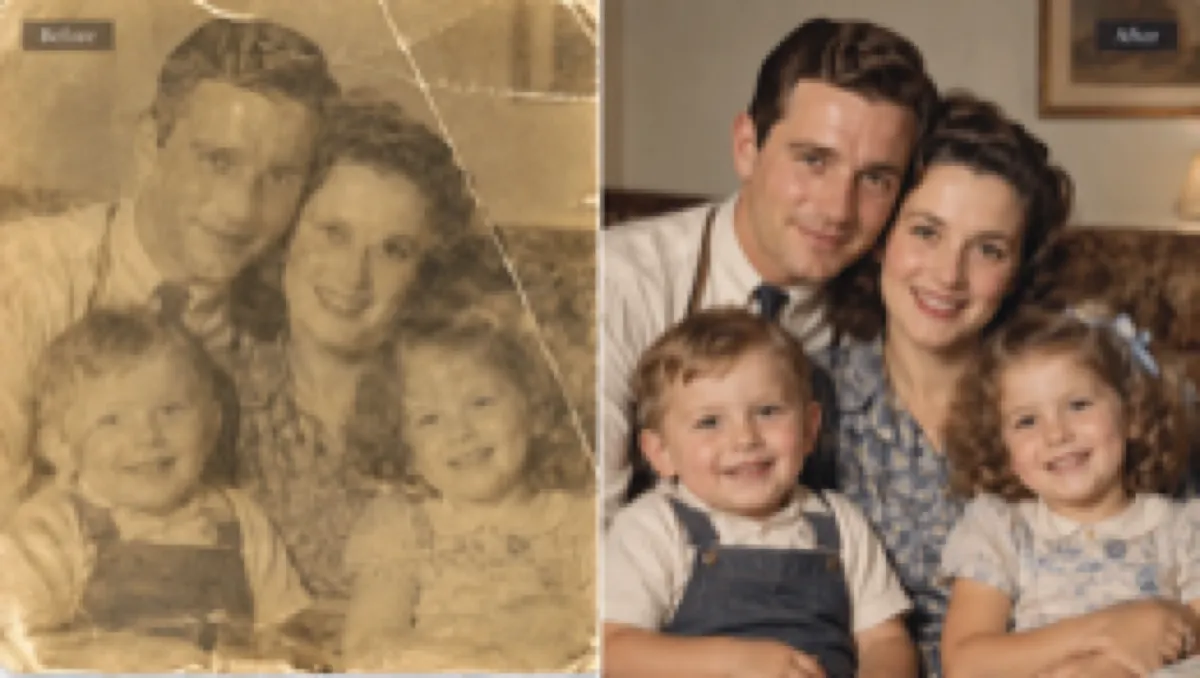
Reduce softness, haze, and visible noise in scanned photos while preserving the original people and scene.
 BeforeAfter
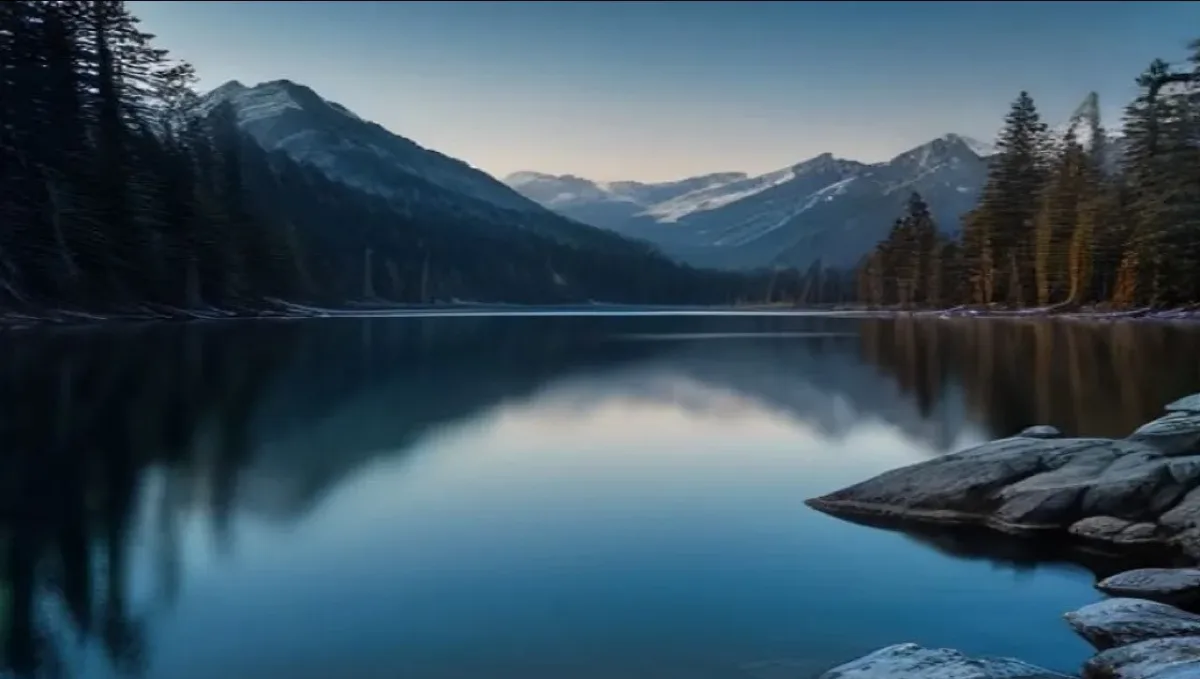
06
Improve detail separation in foliage, rock, water, and distant structures without changing the place.
 BeforeAfter
Upload a JPG, PNG, or WebP image, preview a lighter enhancement locally for free, or use Standard AI processing when you need stronger detail recovery.
Enhance Your PhotoUpload, choose the enhancement strength, compare the result, and download — with the cost visible before AI processing starts.
Choose a photo in JPG, PNG, and WebP images. The interface prepares it for the selected workflow without starting an enhancement run yet.
Select Local for a free browser preview, Standard for AI enhancement, or Pro for stronger processing. The interface shows the required credits before every run.
Start processing when your category and route are ready. A visible processing state lets you know the enhancement is still underway.
Review the original beside the result, then download. A paid balance removes the watermark; a zero paid balance adds one and shows the upgrade prompt.
Choose between a free local preview and stronger Standard AI enhancement while keeping privacy, cost, and download rules visible.
The Local route processes the file inside your browser, so you can test a lighter enhancement without uploading it.
Standard sends the photo to an AI provider for stronger processing, letting you judge whether that route fits the image.
Downloads are watermark-free when your paid balance is positive; at zero, the result includes a watermark and an upgrade prompt.
The interface displays the credit charge before Standard or Pro processing begins, so the cost is visible before submission.
Local files never leave the browser. Standard and Pro files are uploaded to the processing provider after you start the run.
Open the browser interface on desktop, tablet, or mobile and follow the same upload, route, comparison, and download flow.
Answers about improving image quality, blurry photos, supported formats, pricing, privacy, and downloads.
An image enhancer can improve perceived clarity, edge detail, contrast, and overall image quality. Quick Enhance handles lighter tonal and color cleanup locally; Standard uses GPT Image 2.5 for stronger generative detail restoration.
Yes. Standard enhancement rebuilds edges and fine detail instead of only stretching pixels. Quick Enhance adjusts tone, color, and brightness without inventing missing detail; Portrait mode uses stricter identity-preserving restoration instructions for soft portraits.
Upload a JPG, PNG, or WebP image, choose Quick Enhance or Standard, run the enhancement, compare the original with the result, and download the version you prefer.
Quick Enhance is free, needs no account, and runs entirely in your browser. Standard AI enhancement costs 2 credits per image, with the exact charge shown before processing starts.
No. Selecting a file only creates a local preview. Quick Enhance keeps the image in your browser; Standard uploads it to the processing provider only after you start the AI enhancement.
The enhancer accepts JPG, PNG, and WebP files up to 10 MB. Quick Enhance can export PNG, JPG, or WebP; Standard uses the provider's native output format.
Standard focuses on detail restoration rather than guaranteeing an exact 2× or 4× pixel scale. For deterministic 2× or 4× output dimensions, use the dedicated Image Upscaler.
Yes. Use the matching category to guide the workflow. Portrait mode uses stricter identity-preserving restoration guidance with Standard; other categories use the same fidelity-first Standard route, and text-heavy images should always be checked carefully after processing.
Standard can improve softness, haze, noise, and weak detail in scanned photos. It is best suited to quality enhancement rather than reconstructing severe physical damage that is not visible in the source.
Quick Enhance exports are watermark-free because the file never leaves your browser. AI-enhanced downloads are watermark-free when your paid balance is positive; at zero paid balance, downloads include a small enhancephoto.org mark and an upgrade option.
Yes. EnhancePhoto runs in modern browsers, so you can choose a photo, enhance it, compare the result, and download it on mobile or desktop without installing an app.
You keep the rights you already hold in your photos. Commercial use is fine as long as you have the rights to the source image and follow the Acceptable Use Policy.
Email support@enhancephoto.org for support. Privacy Policy, Terms of Service, and Acceptable Use Policy are linked in the footer.