EnhancePhoto

AI Photo Restoration – Restore Old Photos Online

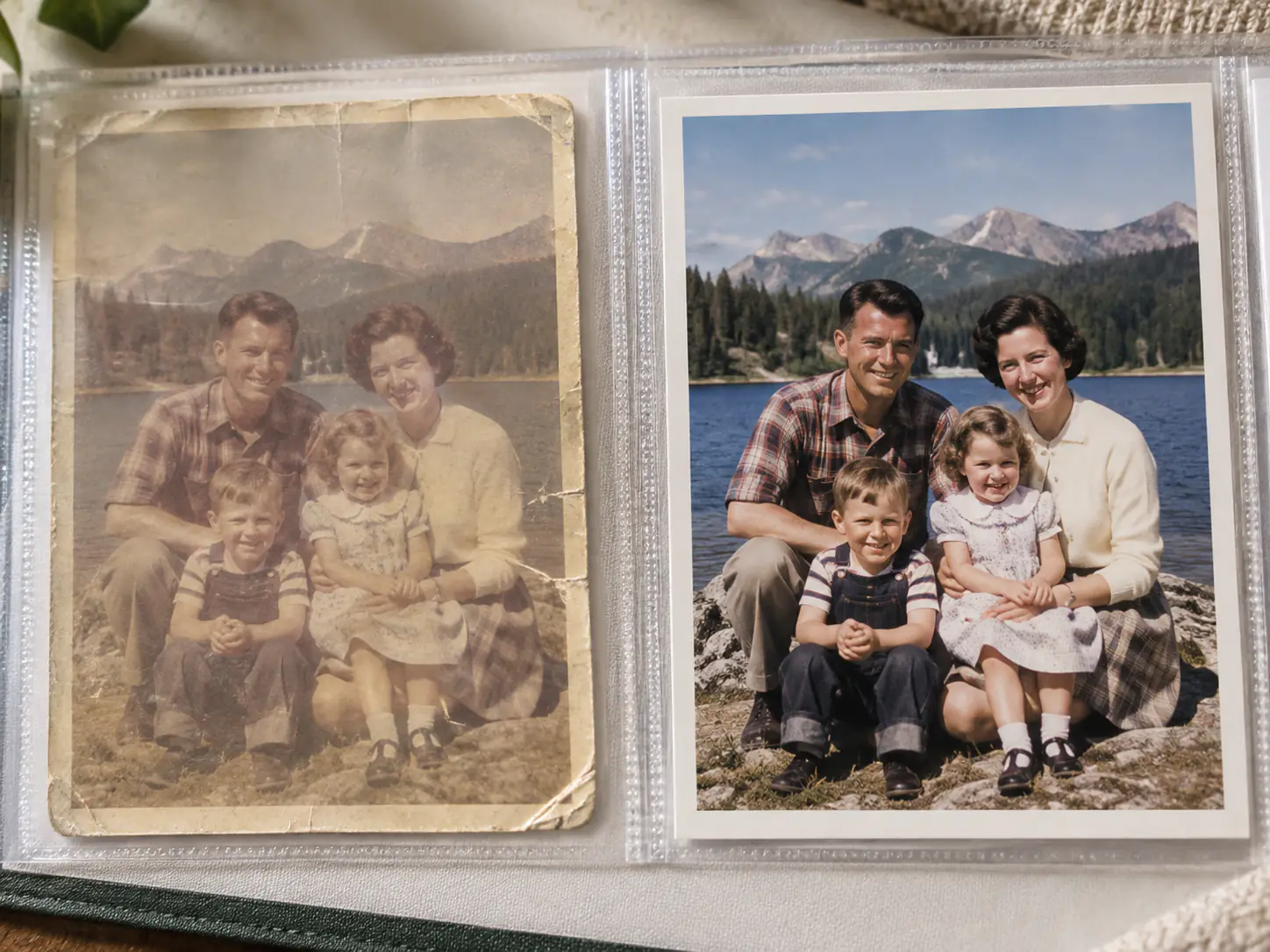
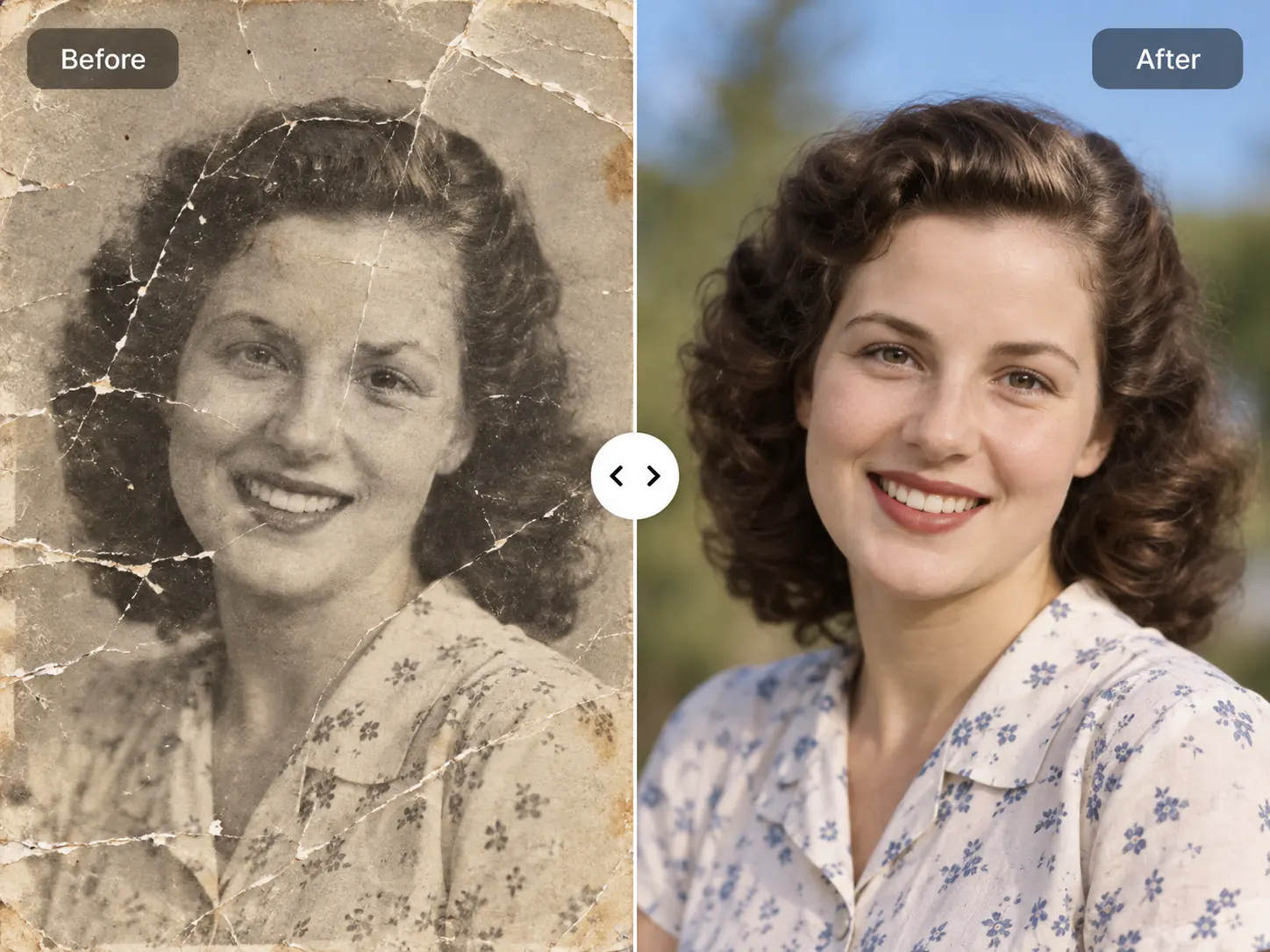
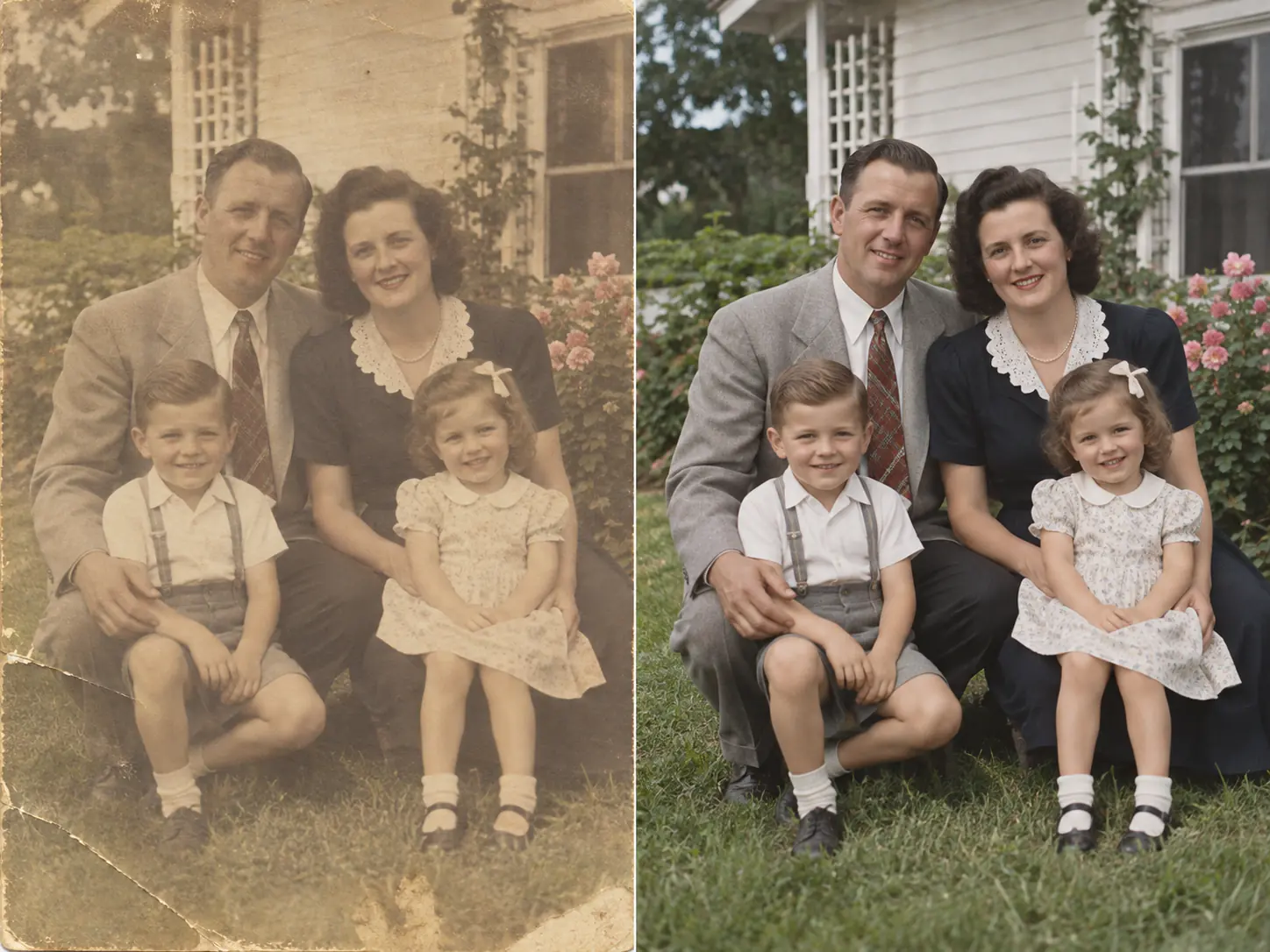
Use AI photo restoration to repair scratches, fading and noise while preserving faces, framing and period detail. Upload one scan, review the restored result, and keep the original as your reference.

After restoration
Before restoration
↔
Before restorationAfter restoration

AI Photo Restoration for Every Kind of Old Photo

Use AI photo restoration for scratched portraits, faded prints and family archives while keeping people, framing and period detail recognizable.

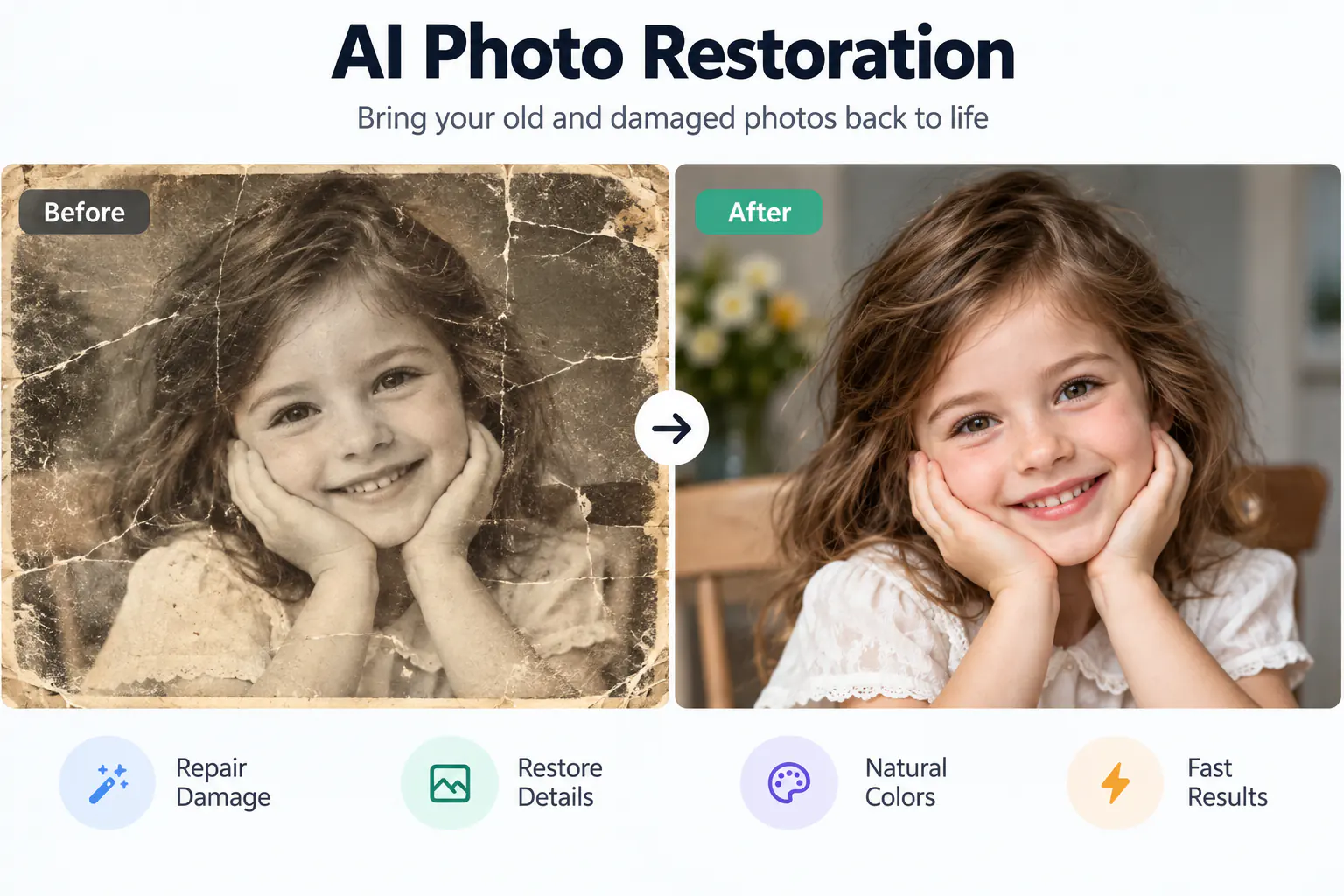
Repair Scratches, Fading and Photo Damage
01

Repair Scratches, Fading and Photo Damage

Generative photo restoration can reduce scratches, fading, dust-like noise, weak contrast and soft edges. Start with the clearest scan you have and keep the untouched original for comparison. Missing faces, text or large torn areas may still be inferred, so treat reconstructed details as estimates.
AI Old Photo Restoration That Preserves Faces
02

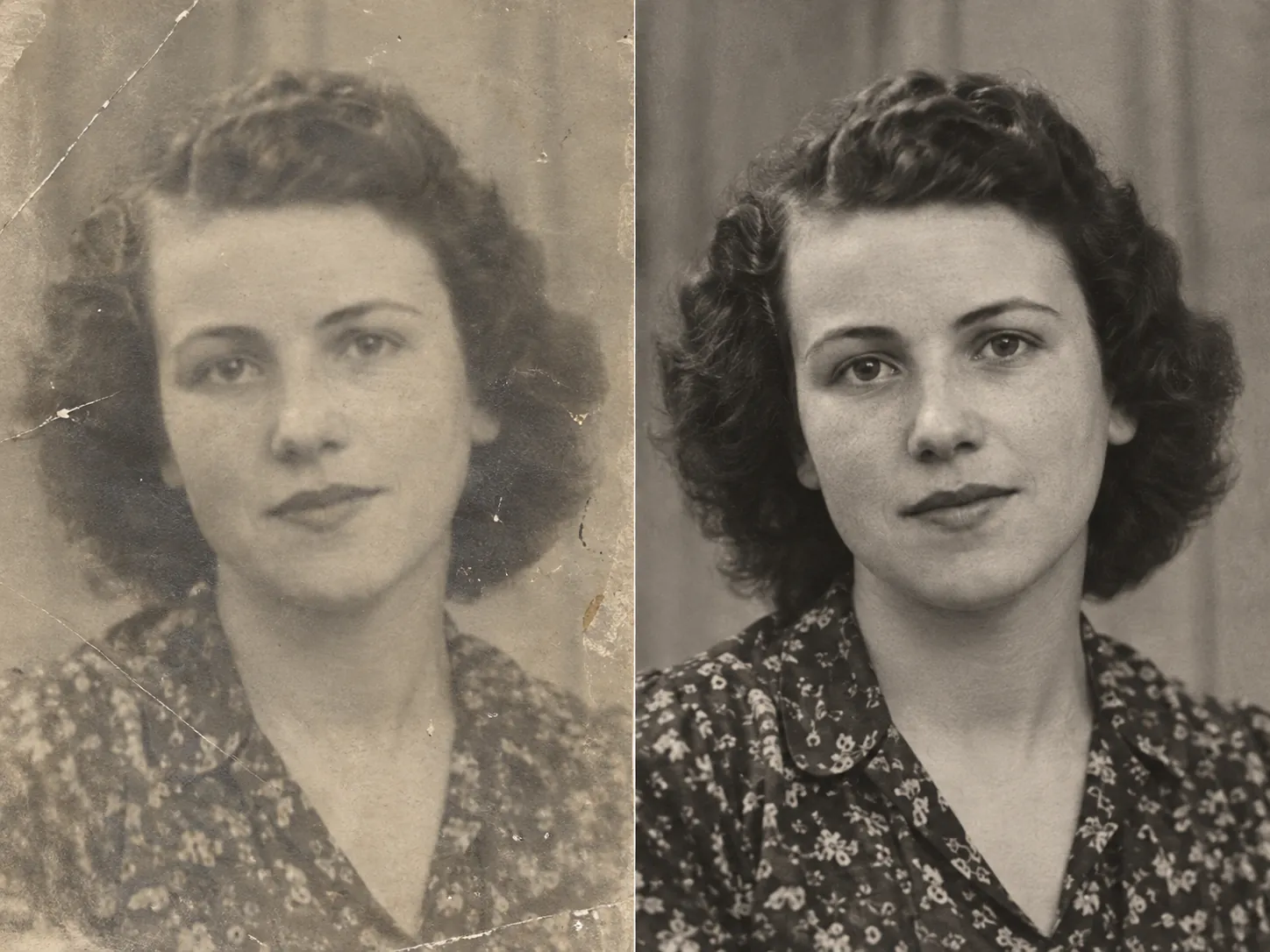
AI Old Photo Restoration That Preserves Faces

EnhancePhoto aims to preserve identity, expression, clothing and period detail while improving clarity. Check eyes, hairlines, hands and other distinctive features against the source. If a face changes noticeably, use a clearer scan rather than accepting a sharper but less faithful result.

Enhance Old Photos with Natural Color and Clarity
03

Enhance Old Photos with Natural Color and Clarity

Deep learning restoration models can improve contrast, reduce color casts and clarify edges without over-sharpening the image. Faded photos can regain clearer separation between skin, clothing and background. Any inferred color is a visual interpretation, so keep the original scan as your reference.

Restore Old Photos Online for Family Archives and Reprints
04

Restore Old Photos Online for Family Archives and Reprints

Restore old photos online for albums, genealogy records, memorial portraits or reprints while keeping the original scan untouched. EnhancePhoto chooses the closest supported aspect ratio instead of forcing every result to 1:1. For larger prints, restore first, verify the content, then use the image upscaler.

Upscale a checked restoration

How to Restore Old Photos with AI Online

AI photo restoration works best with a clean scan: upload the best source you have, restore common age-related damage, then compare faces, edges and background detail with the original before downloading.

  1. 1

    Upload the best available scan

    Choose one JPG, PNG or WebP file up to 10 MB. You can also focus the upload area and paste an image from your clipboard. A straight, glare-free scan with visible facial detail gives the restoration model more trustworthy information.

  2. 2

    Let AI repair common damage

    The shared old-photo recipe reduces scratches and noise, recovers natural contrast and color, and refines soft edges while asking the model to preserve identity and period detail.

  3. 3

    Compare, inspect and continue

    Review faces, hands, clothing, background objects and any text against the original. Once the result looks faithful, download it, upscale it for print, or move into the AI Image Editor for another controlled pass.

AI Photo Restoration FAQ

Practical answers about AI photo restoration quality, supported damage, credits, privacy, mobile use and aspect ratio.

  1. 1

    Which AI can help restore old photos online?

    EnhancePhoto uses an AI-guided restoration workflow to improve scratches, small dust marks, faded contrast and some soft areas in vintage photos. It can infer details in missing regions, so it cannot guarantee historically accurate faces or text. Keep the original scan and compare both versions before deciding whether the result is suitable.

  2. 2

    Can I download restored photos without a watermark?

    Downloads created using free or guest credits may include an EnhancePhoto watermark. Watermark-free export requires eligible paid access. Review the download options before purchasing; free-to-try does not mean unlimited free, watermark-free downloads.

  3. 3

    Can I restore old photos online for free without signing up?

    You can start with the available guest trial allowance, subject to its current limits. AI restoration uses credits; the tool shows its current cost before you run it. If you exhaust the trial allowance, sign-in or paid credits may be required. Keep the original scanned photo so you can compare details.

  4. 4

    Can AI photo restoration repair scratches and faded areas?

    Yes, our generative restoration pipeline can reduce scratches, dust-like noise, fading, weak contrast and some soft edges. Missing regions may still be inferred rather than recovered exactly, so keep the original scan for comparison.

  5. 5

    Can AI photo restoration change the faces in family pictures?

    Yes, it can. Our prompt asks the model to preserve people and expressions, but unclear or missing pixels can produce plausible features that were never captured. Compare eyes, mouths, hairlines, jewelry and other distinctive details with the original before sharing or printing a family portrait.

  6. 6

    How can I improve old photo quality before restoration?

    Use the clearest scan available, keep the print flat and glare-free, preserve the original framing, and avoid repeated sharpening or compression before upload. Better source detail gives the restoration algorithm more reliable information to work with.

  7. 7

    Does old photo restoration automatically colorize black-and-white pictures?

    No. The restoration workflow asks the model to retain a black-and-white, sepia or monochrome photo's original tones. To add color intentionally, open the separate Photo Colorizer tool; generated colors are interpretations, not proof of the historical colors.

  8. 8

    Is photo restoration the same as image upscaling?

    No. Old photo restoration focuses on scratches, fading, noise and damaged detail; image upscaling increases pixel dimensions. Restore and verify first, then upscale if you need a larger file for print or display.

  9. 9

    Can severely damaged old photos always be restored?

    No. When large areas are missing, AI photo repair models can generate a plausible reconstruction but cannot prove what the original face, text or background looked like. Preserve the source and review reconstructed regions carefully.

  10. 10

    Which image formats are supported?

    The page accepts one JPG, PNG or WebP up to 10 MB. Use the original scan when possible instead of a screenshot or repeatedly compressed copy.

  11. 11

    Are uploaded family photos private?

    EnhancePhoto does not publish uploads or results to a public gallery. Signed-in restoration tasks stay in private account History and are handled under the Privacy Policy.

  12. 12

    How many credits does AI old photo restoration cost?

    The current credit cost is displayed beside the Restore Photo action and depends on the model and processing options available when you submit. Trial credits have limits; check the live amount on the page rather than relying on an older fixed-price description.

  13. 13

    Can I restore old photos on a phone without installing an app?

    Yes. Open EnhancePhoto in a modern mobile browser, select a supported photo, submit the restoration and follow the task in History. No separate mobile app is required.

  14. 14

    Does photo restoration keep the original aspect ratio?

    EnhancePhoto reads the uploaded image shape and chooses the closest aspect ratio supported by the restoration model instead of forcing every photo to 1:1. Common portrait, landscape and square photos therefore remain much closer to the source framing.

  15. 15

    Should I scan an old photo or photograph it with my phone?

    A flat scan is usually the better source because it avoids glare, perspective distortion and uneven lighting. A phone photo can still work when a scanner is unavailable, but keep the camera parallel to the print and use soft, even light.

  16. 16

    What scan resolution is best for photo restoration?

    Use the clearest practical scan rather than a heavily compressed copy. For small prints, a 300–600 dpi scan usually preserves enough facial, clothing and edge detail for image restoration models to work with more reliable source information.

  17. 17

    Should I crop borders before restoring an old photo?

    Only crop obvious empty scanner margins when they are not part of the original print. Keep meaningful borders, handwritten notes, studio marks and framing until after restoration so you do not remove useful historical context.

  18. 18

    Can I print a restored old photo?

    Yes. First inspect faces, text and background details against the original. If the restoration looks faithful but the file is too small for your target print size, use image upscaling after restoration rather than before it.

  19. 19

    Why should I keep the original scan?

    Deep learning models may infer pixels where the source is damaged or unclear. Keeping the untouched scan gives you a factual reference for faces, writing, clothing, dates and other details that should not be silently replaced by a generated interpretation.

  20. 20

    What should I check before downloading the restored photo?

    Compare the result with the original at normal size and while zoomed in. Check eyes, mouth shape, hairlines, hands, jewelry, printed text, borders and background objects, then download only when the important details still look consistent.

  21. 21

    Can photo restoration fix faded writing or dates on an image?

    It may make partially visible marks easier to see, but missing letters and numbers can be guessed incorrectly. Treat reconstructed handwriting, dates, captions and studio marks as uncertain unless you can verify them against the original or another trusted record.

Bring Your Old Photos Back into Focus

Upload your best scan and restore it in one guided workflow.