Get a Better Quality Photo – Turn Dull & Soft Shots into Crisp Pictures

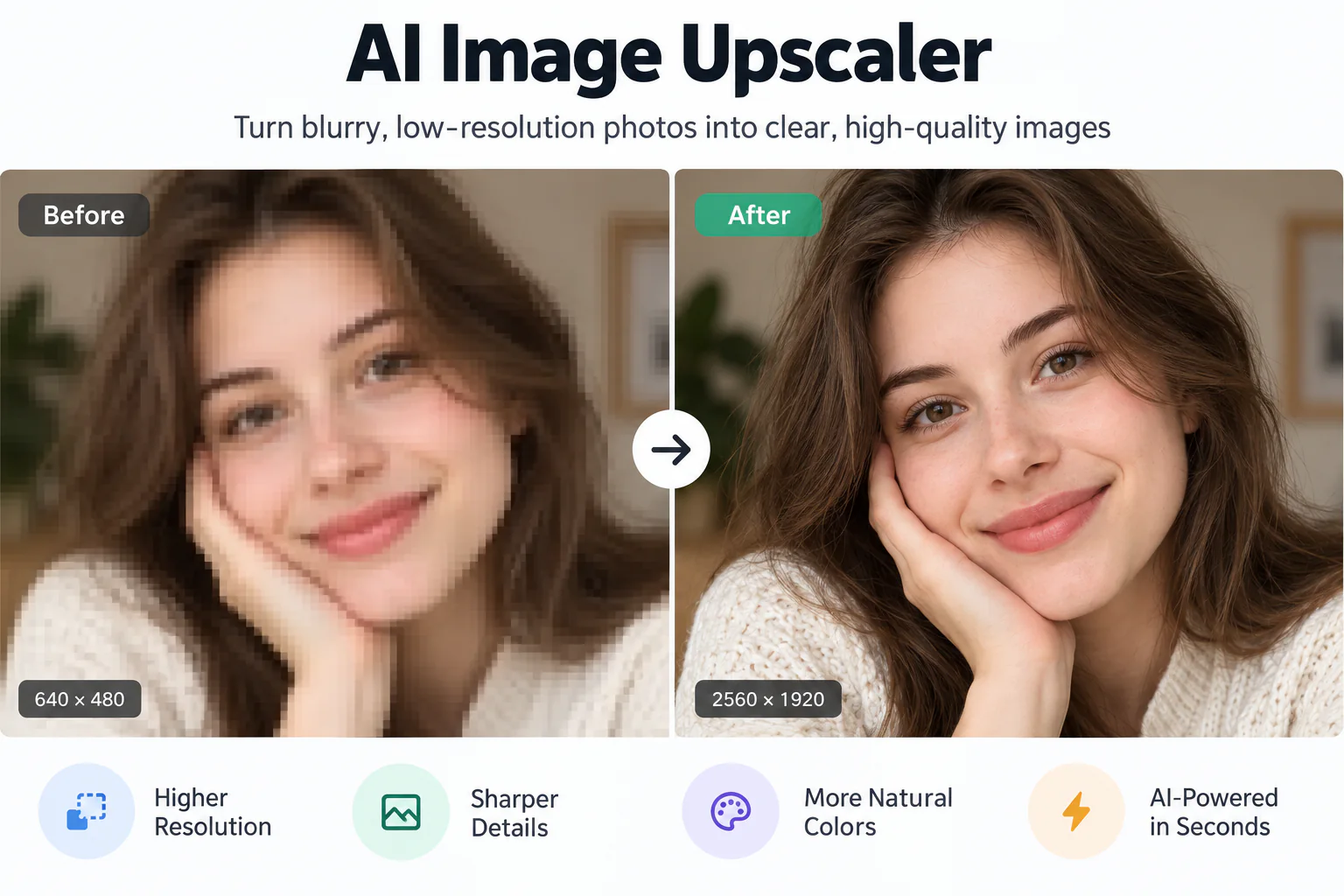
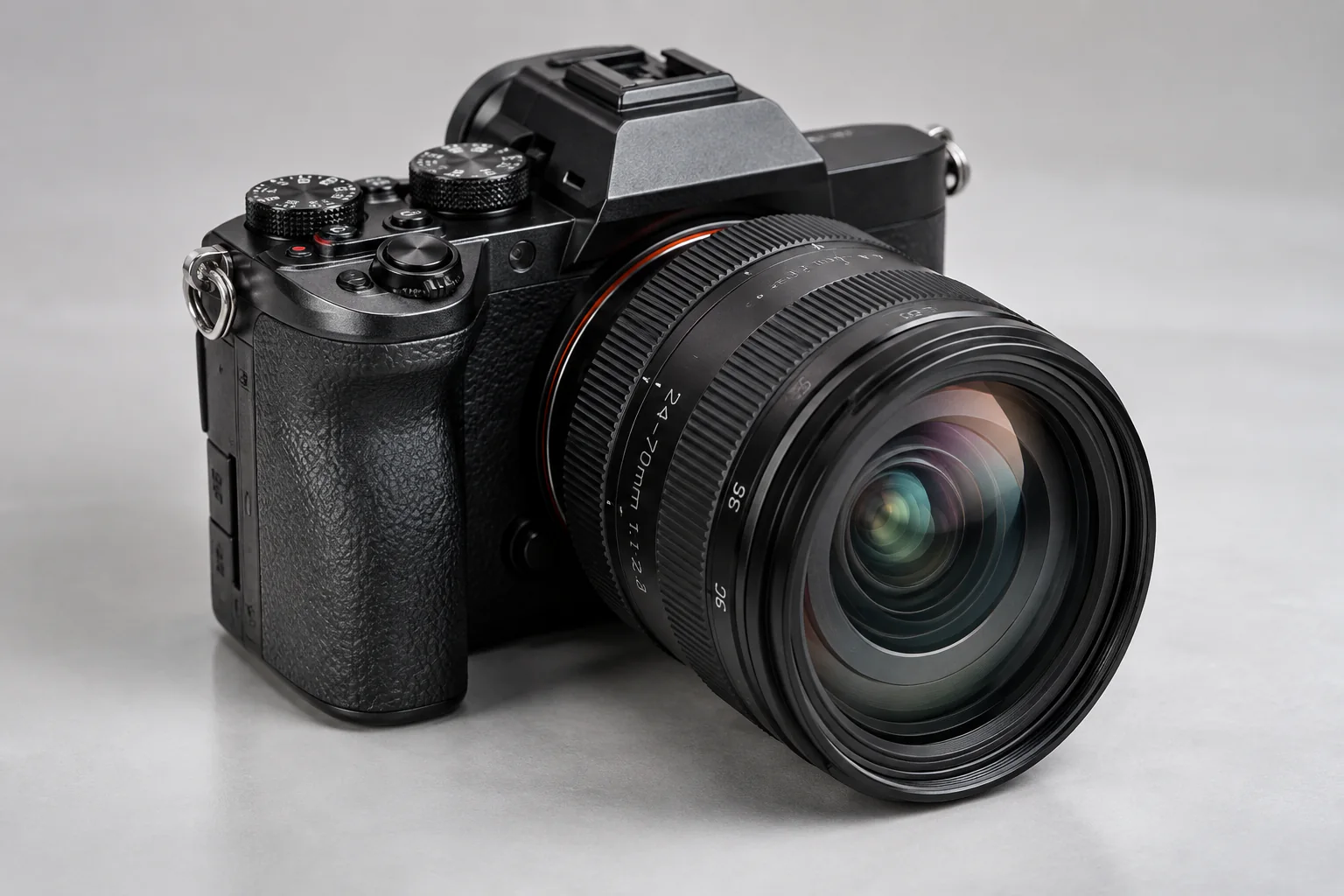
Turn soft, muddy, or dimly lit shots into a better quality photo with EnhancePhoto in seconds. Rescue dull phone snaps, balance shadowy exposures, and make everyday pictures look naturally crisp and vibrant with an instant Before/After comparison.

Better quality
Original photo
↔
Original photoBetter quality

Rescue Dull, Muddy Shots and Bring Out Natural Crispness

Turn soft camera captures, underexposed phone pictures, and faded everyday snaps into clean, eye-catching photos with realistic color and authentic sharpness.

Rescue Soft Phone Snaps and Motion Softness
01

Rescue Soft Phone Snaps and Motion Softness

Mobile cameras often capture slightly soft focus when shooting in dimly lit rooms or moving subjects. EnhancePhoto sharpens blurred contours, defines subtle eye and hair textures, and restores crisp subject separation without introducing artificial white outlines or jagged edges.
Lift Muddy Shadows and Correct Flat Lighting
02

Lift Muddy Shadows and Correct Flat Lighting

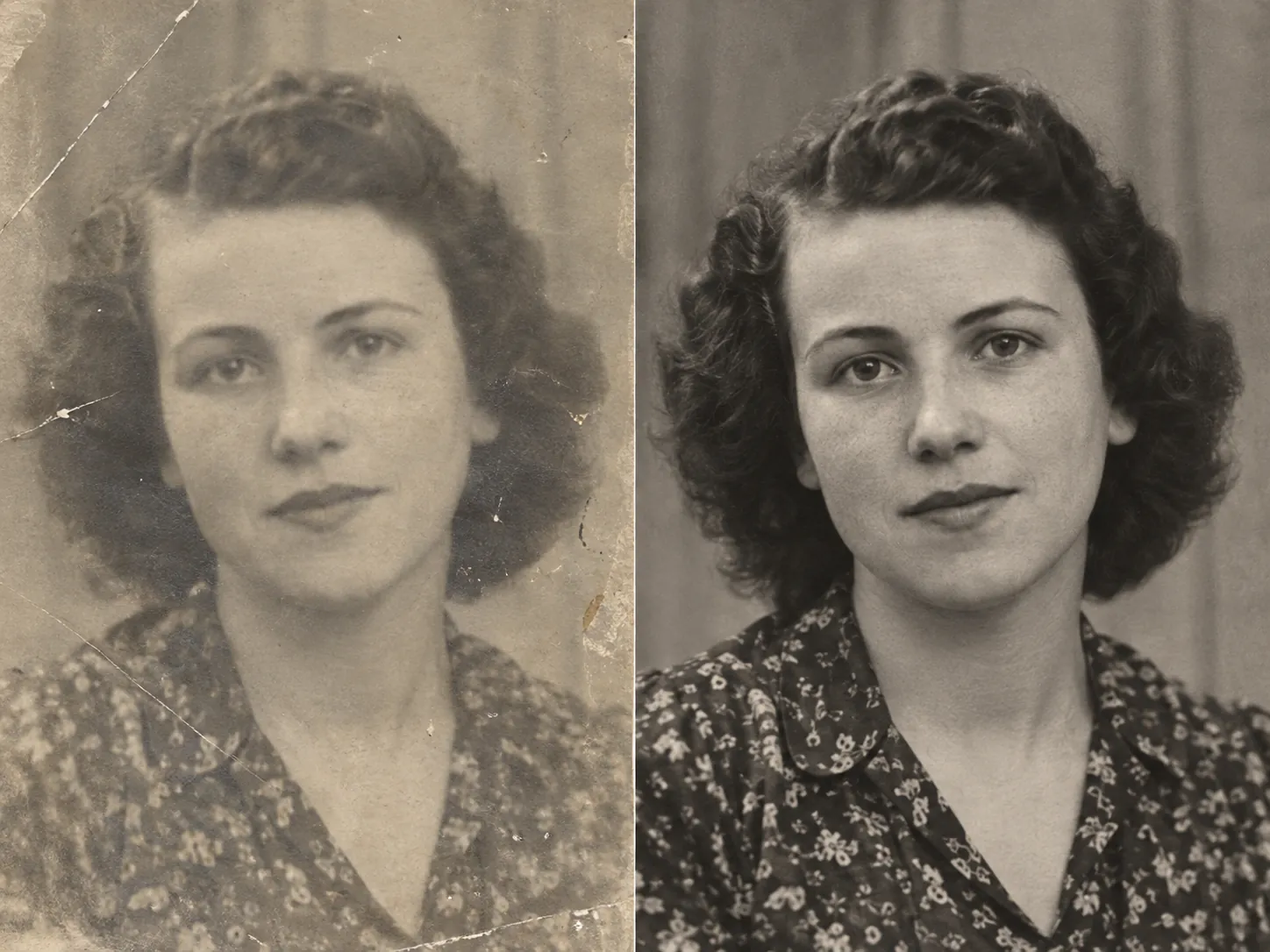
Flat lighting and harsh backlighting leave everyday photographs looking dull, dark, and lifeless. Our enhancement engine intelligently reveals obscured details in deep shadows, recovers washed-out highlights, and balances midtone contrast for vibrant, lifelike depth.

Natural Color Balance Without Plastic Skin Tone
03

Natural Color Balance Without Plastic Skin Tone

Cheap filter apps over-saturate colors and smear skin into a plastic mask. EnhancePhoto enhances skin warmth, foliage greens, and sky blues authentically, preserving natural facial features, pore texture, and original identity while making the overall picture look fresher and healthier.

Better Quality Visuals for Products, Snaps, and Memories
04

Better Quality Visuals for Products, Snaps, and Memories

Whether you need clean, crisp listing photos for e-commerce sales, polished portraits for social profiles, or rescued family vacation memories, achieve studio-grade visual polish in seconds with zero manual editing experience.

Upscale better quality photos to 4K

How to Get a Better Quality Photo in 3 Simple Steps

Transform soft, dull captures into vivid, crisp pictures: upload your original shot, let automated visual enhancement balance lighting and refine edges, then compare results side by side before downloading.

  1. 1

    Upload your original photo

    Select any JPG, JPEG, PNG, or WebP photo up to 10 MB. Soft mobile captures, underexposed travel shots, and dull portraits are ready to process.

  2. 2

    Automated enhancement lifts and sharpens

    Intelligent processing brightens muddy shadows, sharpens soft outlines, balances color tone, and restores missing surface clarity naturally.

  3. 3

    Compare side by side and export

    Slide the interactive Before/After bar to see the immediate visual upgrade, then download your crisp, better quality photo ready to share or print.

Next steps after getting a better quality photo

Pair your freshly enhanced photo with our complementary upscaling, compression cleanup, and colorization tools for complete creative control.

Upscale photos to 4K or 8K resolution

Enlarge your enhanced, crisp photo for large-format wall prints and high-DPI desktop screens without losing sharpness.

Open Image Upscaler

Fix heavily compressed JPEG photos

Eliminate blocky 8x8 compression squares, ringing noise, and pixelation caused by messaging app transfers.

Open JPEG Enhancer

Add vibrant color to vintage black-and-white shots

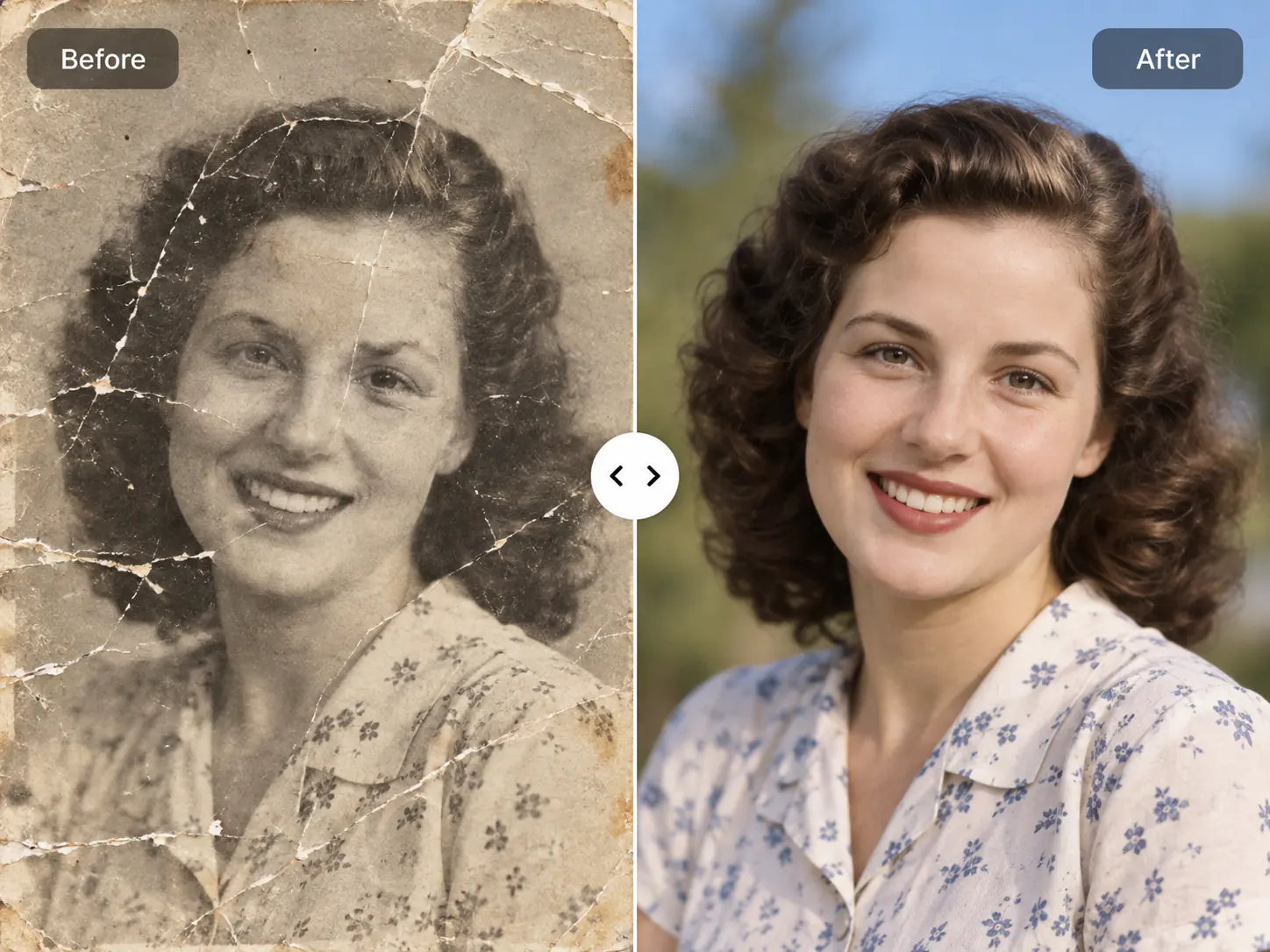
Transform monochrome heirloom pictures into rich, realistic full-color memories with authentic historical tones.

Open Photo Colorizer

Better Quality Photo FAQ

Common questions about getting a better quality photo, fixing soft phone shots, rescuing low-light pictures, and free online comparison.

Better Quality Photo FAQ

Common questions about getting a better quality photo, fixing soft phone shots, rescuing low-light pictures, and free online comparison.

  1. 1

    How do I get a better quality photo without complex editing software?

    You can get a better quality photo instantly by uploading your picture to EnhancePhoto, where automated enhancement sharpens soft edges, cleans muddy shadows, and restores crisp details in one click. You avoid complicated curves, layer masks, and manual retouching required by desktop editors.

  2. 2

    What makes a better quality photo when using AI enhancement?

    A better quality photo features balanced exposure, crisp subject edges, natural color saturation, and clean micro-textures without plastic skin or exaggerated sharpening halos. EnhancePhoto refines underlying lighting and focus so the final photograph looks professionally captured rather than artificially filtered.

  3. 3

    Can I get a better quality photo for free online?

    Yes, EnhancePhoto provides free online preview access so you can inspect your improved photo side by side before downloading. You can test your personal snaps, compare before-and-after clarity directly in your browser, and download high-resolution outputs with starter credits.

  4. 4

    How do I get a better quality photo from an iPhone or Android phone?

    To get a better quality photo from a smartphone, upload your camera roll picture directly into EnhancePhoto in mobile Safari or Chrome. The system automatically compensates for small mobile sensors by lifting muddy shadow noise, sharpening soft edges, and restoring natural highlights.

  5. 5

    Can AI make a better quality photo from dark or low-light shots?

    Yes, AI can create a better quality photo from underexposed and low-light pictures by lifting dark shadow areas and suppressing color grain. EnhancePhoto reveals facial features and background textures lost in dim rooms or night scenes while keeping contrast natural.

  6. 6

    What is the difference between getting a better quality photo and upscaling an image?

    Getting a better quality photo focuses on visual clarity, balanced lighting, and sharpness, whereas upscaling multiplies pixel dimensions to 4K or 8K. Upscaling a soft photo only enlarges its imperfections, so creating a better quality photo first delivers a far crisper outcome if you later decide to print.

  7. 7

    How does this page differ from AI detail reconstruction or JPEG deblocking tools?

    This page focuses on everyday photo rescue—fixing muddy lighting, dull colors, and soft phone focus—rather than specialized JPEG compression deblocking. If your file has severe 8x8 compression grid blocks from WhatsApp, use our JPEG Enhancer; for soft, underexposed, or flat everyday photos, this page delivers an instant, better looking result.

  8. 8

    Can I make better quality photos for e-commerce products and marketplace listings?

    Yes, EnhancePhoto helps marketplace sellers turn dull, handheld product shots into clean, commercial-grade listings for Amazon, eBay, and Shopify. It sharpens product contours, brightens muted materials, and clarifies fine fabric and label textures so products look appealing to buyers.

  9. 9

    Are my uploaded photos kept private, secure, and confidential?

    Yes, your uploaded photos and enhanced results remain strictly confidential and protected by secure encryption. EnhancePhoto never publishes your personal images to public galleries or feeds them into public machine learning models, and you can permanently delete files from your private History whenever you wish.

  10. 10

    Can I use the better quality photos for commercial projects and print?

    Yes, you retain full commercial rights to all enhanced images and can freely use them for client work, advertising, online stores, and physical prints. EnhancePhoto supports JPG, JPEG, PNG, and WebP formats up to 10 MB per file.

Ready to Make Your Photos Look Dramatically Better?

Upload your soft, dull, or underexposed shot now and see a clean, better quality photo in seconds.